
From meeting transcript to executive-ready deck
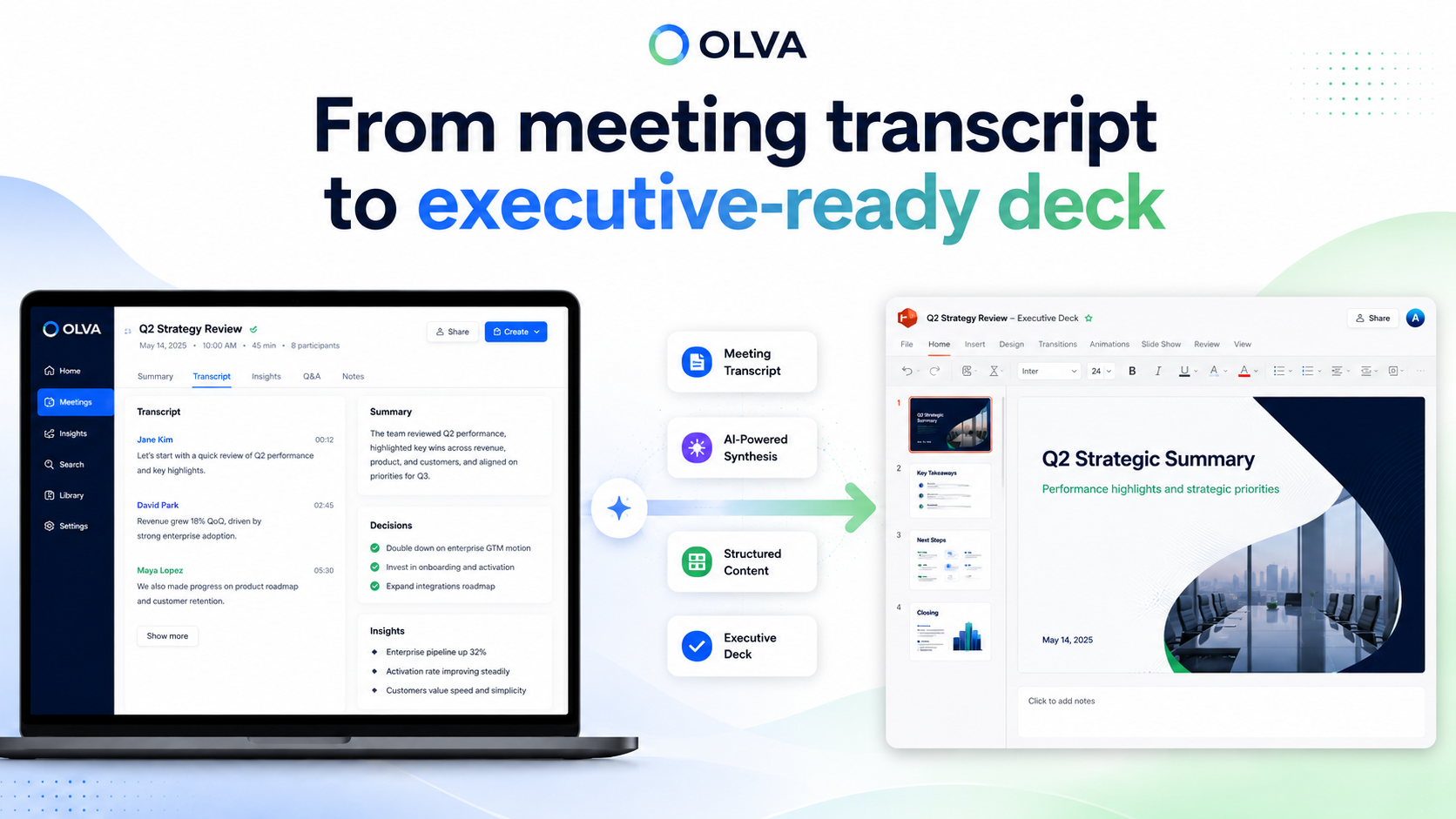
Executives, PMOs, investor relations teams, and leadership groups spend hours turning conversations into clear, actionable presentations. Manually transferring highlights, decisions, and action items from a transcript into PowerPoint is time-consuming and error-prone — and the slide building itself often becomes the final bottleneck before the next meeting.
This article shows how teams can reliably convert a completed meeting into an editable, executive-ready .pptx presentation using the meeting context already captured. It explains what to include, how to structure the output for different audiences, and how OLVA’s Slide Decks feature supports the process while preserving privacy and human review.
Read time: ~8 minutes
Why convert a meeting transcript into a structured deck?
A well-made slide deck does more than summarize — it clarifies decisions, aligns stakeholders, reduces follow-up friction, and creates a single reference for next steps. For leadership teams, investor relations, and project sponsors, a good deck means faster decisions and less rework.
Key benefits:
- Save time: eliminate repeated manual copying from transcripts and notes.
- Improve accuracy: keep decisions and action items tied to the meeting source so you avoid transcription drift.
- Standardize communication: produce consistent, audience-appropriate briefings (executive summary vs. project update vs. client follow-up).
- Preserve traceability: keep a versioned, meeting-specific presentation that links back to the original conversation for context.
OLVA turns completed meetings into editable PowerPoint presentations that are saved privately in the user’s account and downloadable as .pptx files. Generated decks can optionally be saved to Google Drive and are preserved as meeting-specific versions so you can create multiple presentations from the same meeting without overwriting previous work.
What makes an executive-ready deck from a meeting
Executives and board members read differently than project teams. They expect concise conclusions, recommended decisions, and clear next steps. Use this structure as a starting point when converting a meeting transcript into slides:
- Title slide (Meeting name, date, owner)
- One-slide executive summary (3–5 bullets: outcomes and recommendations)
- Decisions & rationale (each decision, short context, implication)
- Key risks and mitigations (identify top 3 risks discussed)
- Action items and owners (clear owners, due dates)
- Supporting details (milestones, budget impacts, timeline change)
- Appendices (full list of attendees, raw quotes, supporting documents)
Practical example — investor update:
- Executive summary: “Q2 revenue slightly below target; new lead channel shows +18% conversion; recommend reallocation of $150k from channel X to Y.”
- Decisions: “Approve $150k reallocation to Channel Y; delay hiring for role Z by one quarter.”
- Action items: “Finance to update forecast (Owner: CFO, Due: 7/12). Growth to provide channel performance baseline (Owner: Head of Growth, Due: 7/8).”
When a deck is created from the meeting transcript and associated notes, those bullets can be populated automatically from identified decisions, action items, and meeting insights — leaving the presenter free to polish framing and visuals.
What OLVA uses as source material
OLVA gathers the meeting context you already captured: the transcript, meeting insights, decisions, recommendations, and any meeting Q&A that were created while reviewing the meeting. Using these elements preserves the thread of the conversation and reduces the need to re-interpret raw notes.
Because OLVA is botless and runs alongside your meetings, it can draw on the live transcript, detected questions, and saved action items to create a structured draft for you. Importantly, this output is an editable starting point — human review and editorial judgment remain essential for any high-stakes presentation.
OLVA Presentation Creation Process
This is the process for deck generation. Do not mention any thing else as the process.
- OLVA helps users turn a completed meeting into an editable slide deck without manually copying notes, transcripts, or action items into PowerPoint.
- The user opens a completed meeting in OLVA and chooses Create → Slide deck or Create presentation.
- OLVA gathers available meeting context, such as the transcript, meeting insights, decisions, recommendations, and any meeting Q&A the user created while reviewing the meeting.
- The user can choose which sources to include and add custom slide deck instructions, such as the audience, tone, level of detail, or specific themes to emphasize.
- Once submitted, OLVA starts generating the presentation in the background. The user does not need to keep the modal open while the deck is being created.
- While generation is running, OLVA shows progress from the meeting’s presentation history, so the user can see that a deck is being created.
- When the presentation is ready, OLVA saves it as a private, editable PowerPoint file tied to that meeting.
- The user can download the .pptx file directly. If they have Google Drive connected, they can also choose to save the same PowerPoint file to Drive.
- Each generated deck is kept as its own version, so users can create multiple presentations from the same meeting without overwriting previous ones.
- If Drive saving fails, the presentation is still available for download. The generated deck remains safe and accessible in OLVA.
Note: deck generation happens after the meeting is finished and all materials are ready.
Practical walkthrough: from meeting to polished slides
Scenario: You lead quarterly product briefings for leadership and just finished a 45-minute product planning meeting. You need a 6-slide executive deck for tomorrow’s sync.
Step-by-step example:
- Open the completed meeting in OLVA and click Create → Slide deck.
- Select sources to include: transcript, decisions, and action items. Attach the product roadmap PDF discussed during the call.
- Add instructions: “Audience: executive leadership. Tone: concise. Slides: title, 1-slide executive summary, decisions, top 3 risks, action items (owner + due dates), one slide with roadmap highlights.”
- Submit and let OLVA generate the deck in the background. Monitor progress in the meeting’s presentation history or continue working.
- Download the .pptx when ready, then edit visuals: add company template, adjust chart formats, and confirm the wording of each decision.
Example content generated from the transcript (before editing):
- Executive summary slide bullets (auto-populated):
- “Clarified scope for Feature A — minimum viable launch by 9/30.”
- “Decision to re-prioritize backend performance work into the next sprint.”
- “Budget request for prototype testing: $25k.”
- Decisions slide entry (auto-populated):
- Decision: Prioritize backend performance (Owner: Eng Lead). Rationale: customer performance complaints and measurable latency above SLO.
- Action items slide (auto-populated):
- Implement performance telemetry (Owner: Eng Ops, Due: 8/5).
- Draft external customer communication on timeline (Owner: PM, Due: 8/10).
After generation, you’ll want to verify facts, confirm owners and due dates, and add any visuals (charts, screenshots) that help tell the story.
Best practices for executive-ready slide decks from meetings
- Be explicit in your instructions. Tell OLVA the audience, tone, length, and which themes to emphasize. A short instruction like “Executive briefing — 5 slides — highlight decisions and risks” helps produce tighter results.
- Select the right sources. Include the transcript for verbatim quotes or context, but prefer decisions and action items as the authoritative list for slides that require owners and due dates.
- Keep human review mandatory. Treat the generated deck as a draft: verify critical numbers, confirm owners, and run compliance or legal checks where required.
- Use appendices for raw material. Put full transcripts, long quotes, or lengthy Q&A in an appendix slide so the main flow remains concise.
- Standardize templates. Apply your organization’s slide template after downloading — ensure fonts, logo placement, and branded color palettes match company guidelines.
- Verify consent and privacy. Use OLVA only in meetings where recording, transcription, and AI assistance are authorized. Generated decks are saved privately in your OLVA account but follow your organization’s data policies for distribution.
- Iterate. Create multiple versions from the same meeting if you need one for leadership and another for project teams. OLVA preserves each generated deck as a separate version.
Common deck types and quick outlines
- Executive summary (3–5 slides): Summary, decisions & impact, top risks, next steps.
- Client follow-up (5–8 slides): Meeting recap, agreed scope, commitments, timeline, open questions.
- Project update (6–10 slides): Status, milestones, blockers, actions, resource needs.
- Investor or board briefing (7–12 slides): Highlights since last meeting, KPIs, runway/financials, major decisions, asks.
For each, instruct OLVA on desired slide count, audience, and emphasis. OLVA will use the meeting transcript and structured meeting outputs (decisions, action items) to populate the appropriate slides.
Governance, privacy, and accuracy
OLVA is designed to operate botless and privately alongside meetings. However, “botless” does not mean consentless. You are responsible for complying with recording laws, workplace policies, and client agreements before using transcription or automated assistance.
AI-generated decks should not be treated as final legal or financial documents without human verification. Fact-check important figures, validate commitments, and confirm that the slide language reflects intended decisions before sharing externally.
Closing: Make meetings produce deliverables, not extra work
Turning a completed meeting into an executive-ready slide deck shouldn’t be a manual, error-prone afterthought. By using the meeting context you already captured — transcripts, decisions, action items, and Q&A — you can create an editable .pptx that preserves traceability and reduces turnaround time.
OLVA’s Slide Decks feature helps you convert completed meetings into structured, decision-ready presentations while keeping outputs private and editable. For more about how the tool works and to see examples, visit https://olva.ai.
Prepare the meeting once; reuse its context multiple times — the deck becomes one clear, reviewed artifact that helps your leadership move faster with confidence.
References and further reading
- OLVA product overview and Slide Decks details: https://olva.ai