
POV: Walk into your next meeting with an editable deck and zero prep
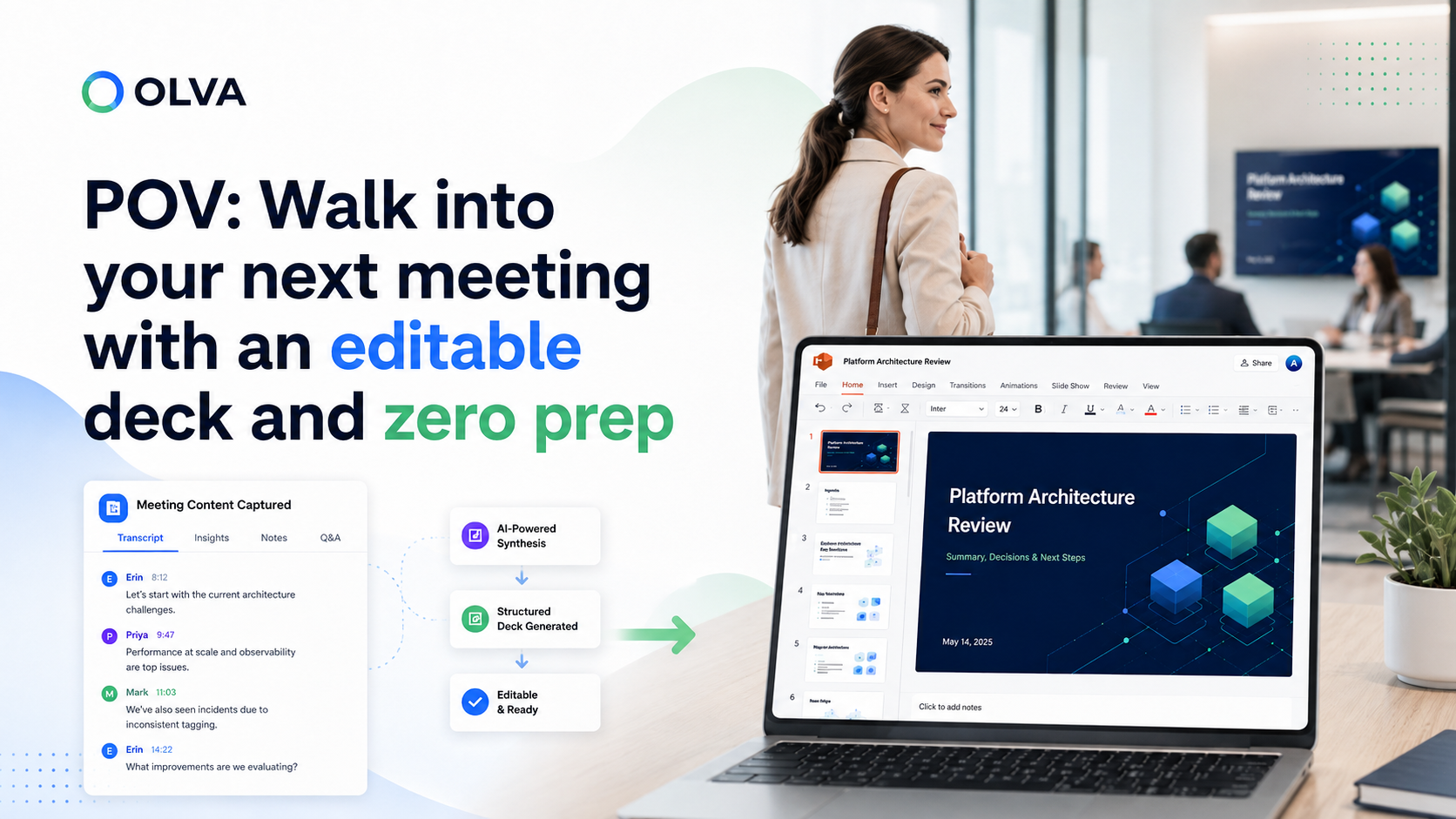
Meetings often end with a pile of notes, half-formed action items, and the inevitable scramble to turn those fragments into something presentable. Imagine this instead: the meeting finishes, OLVA captures the conversation and context, and within minutes you have an editable PowerPoint that summarizes decisions, next steps, and slides tailored to your audience. No manual copy‑paste, no late-night slide-building sessions — just a meeting-to-deck workflow that saves time and preserves accuracy.
In this post we’ll walk through why turning completed meetings into editable slide decks matters, practical examples for remote workers, recruiters, HR leads, and cross-functional contributors, and a clear step-by-step process for creating slides from meeting content using OLVA. You’ll also find prompts and tips to make the generated deck presentation-ready faster.
Why an editable deck from a meeting is a game changer
Most teams treat slide creation as a separate task after a meeting: someone reviews notes, reconstructs the timeline, and translates discussion into slides. That step is costly because it duplicates context, risks omission, and delays follow-up. Turning a completed meeting into an editable deck directly addresses three common problems:
- Consistency: Slides built from the meeting transcript, decisions, and action items reflect what was actually said — not someone’s memory.
- Speed: Generating a structured presentation removes the busywork so teams can focus on next steps and stakeholder alignment.
- Reusability: Editable
.pptxfiles are easy to adapt for different audiences (executives, clients, product teams), rather than starting from scratch.
For remote workers and cross-functional contributors, this workflow preserves meeting context across time zones. Recruiters and HR leads get a concise, shareable record of candidate discussions, interview takeaways, or hiring plans. Project teams get a decision-ready artifact to attach to project trackers or stakeholder updates.
How OLVA converts meetings into editable slide decks (the process)
OLVA Presentation Creation Process
OLVA helps users turn a completed meeting into an editable slide deck without manually copying notes, transcripts, or action items into PowerPoint.
The user opens a completed meeting in OLVA and chooses Create → Slide deck or Create presentation.
OLVA gathers available meeting context, such as the transcript, meeting insights, decisions, recommendations, and any meeting Q&A the user created while reviewing the meeting.
The user can choose which sources to include and add custom slide deck instructions, such as the audience, tone, level of detail, or specific themes to emphasize.
Once submitted, OLVA starts generating the presentation in the background. The user does not need to keep the modal open while the deck is being created.
While generation is running, OLVA shows progress from the meeting’s presentation history, so the user can see that a deck is being created.
When the presentation is ready, OLVA saves it as a private, editable PowerPoint file tied to that meeting.
The user can download the .pptx file directly. If they have Google Drive connected, they can also choose to save the same PowerPoint file to Drive.
Each generated deck is kept as its own version, so users can create multiple presentations from the same meeting without overwriting previous ones.
If Drive saving fails, the presentation is still available for download. The generated deck remains safe and accessible in OLVA.
Note: deck generation happens after the meeting is finished and all materials are ready.
Practical examples by role
Remote Project Manager
- Scenario: A weekly sync covered scope changes, dependency blockers, and three owner-assigned tasks.
- Output: An editable deck with an executive summary slide, a decisions slide (with timestamps and speaker attribution), a prioritized action-items slide, and a timeline slide for deliverables.
- Why it helps: Shareable evidence for stakeholders that matches the meeting record, ready to attach to project trackers.
Recruiter / Hiring Lead
- Scenario: A panel interview produced notes about candidate strengths, concerns, compensation range, and recommended next steps.
- Output: A candidate recap deck that includes a short summary, scorecard highlights, recommended interviewers for next round, and a proposed timeline.
- Why it helps: Clean handoff to hiring managers and interview panel, reduces the risk of losing candidate context.
HR Business Partner
- Scenario: A cross-functional intake meeting outlined a policy change, affected teams, and required communications.
- Output: A briefing deck with a policy summary, impacted groups, communications plan, and assigned owners.
- Why it helps: Provides leadership with a concise decision record and a shareable action plan.
Cross-functional Contributor (Product / Design)
- Scenario: A roadmap discussion surfaced feature priorities, customer pain points, and open technical questions.
- Output: Roadmap slides that show prioritized features, supporting customer quotes, risks, and next research steps.
- Why it helps: Keeps product decisions tied to the original conversation and attached artifacts.
How to get the best deck from a completed meeting — practical tips
- Prepare meeting materials beforehand
- Upload any relevant PDFs, proposals, or product docs to OLVA before or immediately after the meeting. Document-aware intelligence allows those references to be included in the generated slides.
- Use live Q&A and sticky notes during the call
- If OLVA is active during the meeting, use Live Q&A to capture clarifying answers or to surface a definition. Create sticky notes for items you want emphasized in the deck (decisions, blockers, or quotes).
- Pick your sources intentionally when creating the deck
- When you choose Create → Slide deck, include the transcript, the minutes with action items, and any documents you referenced. Excluding noisy sections (e.g., long technical debugging) keeps the deck focused.
- Add a short instruction to guide the deck’s tone
- Example instructions:
- "Create a 6–8 slide executive summary for leadership highlighting decisions, owners, and risks."
- "Build a client-facing follow-up with a recap, proposed next steps, and pricing options."
- "Prepare a hiring recap focused on candidate evaluation and interview recommendations."
- Set expectations for review
- Treat the generated deck as an editable starting point. Verify facts, adjust phrasing, and add visuals as needed before sharing externally.
- Use versioning and multiple presentations
- Generate different decks from the same meeting for different audiences: an internal, detailed version and a client-facing summary. OLVA preserves each generated deck as its own version for safe iteration.
Example slide outline templates you can request
Here are a few short prompts (ready to paste into the deck instruction box) that yield targeted results. Customize them to your context.
- Executive summary (6 slides): "Create a 6-slide executive summary for senior leadership. Slide 1: meeting purpose and participants. Slide 2: key decisions with attribution. Slide 3: top 3 risks. Slide 4: action items with owners and due dates. Slide 5: recommended next steps. Slide 6: required approvals."
- Client follow-up (8 slides): "Build an 8-slide client follow-up presentation: summary, objectives recap, proposed solution, timeline, pricing options (if discussed), open questions, decisions, next steps. Tone: professional and concise."
- Hiring recap (5 slides): "Create a 5-slide candidate recap: summary, strengths, concerns, interviewer scores, recommended next step. Include selected quotes from the interview transcript."
These prompts provide a starting structure; after generation you can edit the deck in PowerPoint or Google Slides.
Reviewing and distributing the generated deck
- Download the
.pptxand run a quick pass for tone, branding, and factual accuracy. Add visuals where they support the message — screenshots, metrics charts, or customer quotes. - If you have Google Drive connected, OLVA can optionally save the deck there for team access.
- Share the deck alongside the OLVA meeting summary or assign action items into your task system to close the loop.
Privacy, consent, and responsible use
OLVA works as an invisible, botless assistant that captures device audio and meeting context. That privacy model doesn’t eliminate legal or policy responsibilities. Before using transcription or slide generation:
- Confirm local recording and transcription laws and obtain necessary consent.
- Follow workplace and client policies about AI assistance and meeting recordings.
- Review generated content before distributing, especially for sensitive matters.
For more details about product capabilities and privacy considerations, visit https://olva.ai.
Common pitfalls and how to avoid them
- Pitfall: Overly long decks
- Fix: Ask OLVA for a specific slide count or a one-page executive summary.
- Pitfall: Missing context or attachments
- Fix: Attach the critical documents in OLVA (proposals, specs) before generating the deck.
- Pitfall: Sharing unreviewed AI-generated content
- Fix: Always perform a human review for accuracy, tone, and compliance before external distribution.
Final checklist before you present the generated deck
- Did you verify decisions and action items against the transcript?
- Are owners and due dates clear and assigned?
- Is the tone appropriate for the audience (client vs. internal)?
- Have you added visuals or charts where data is important?
- Have you followed consent and privacy requirements when sharing the deck?
Conclusion — less busywork, more focus on outcomes
Turning completed meetings into editable slide decks closes the loop between discussion and action. For remote teams, recruiters, HR leads, and cross-functional contributors, this workflow reduces manual work, preserves accuracy, and speeds stakeholder alignment. OLVA’s approach — capturing meeting audio privately, pairing transcripts with live insights and documents, and generating editable .pptx decks tied to the meeting — makes slide creation a background task instead of a late-night chore.
If you want to try turning your next meeting into an editable presentation, learn more at https://olva.ai and explore how meeting context can be converted into decision-ready slides with minimal manual effort.