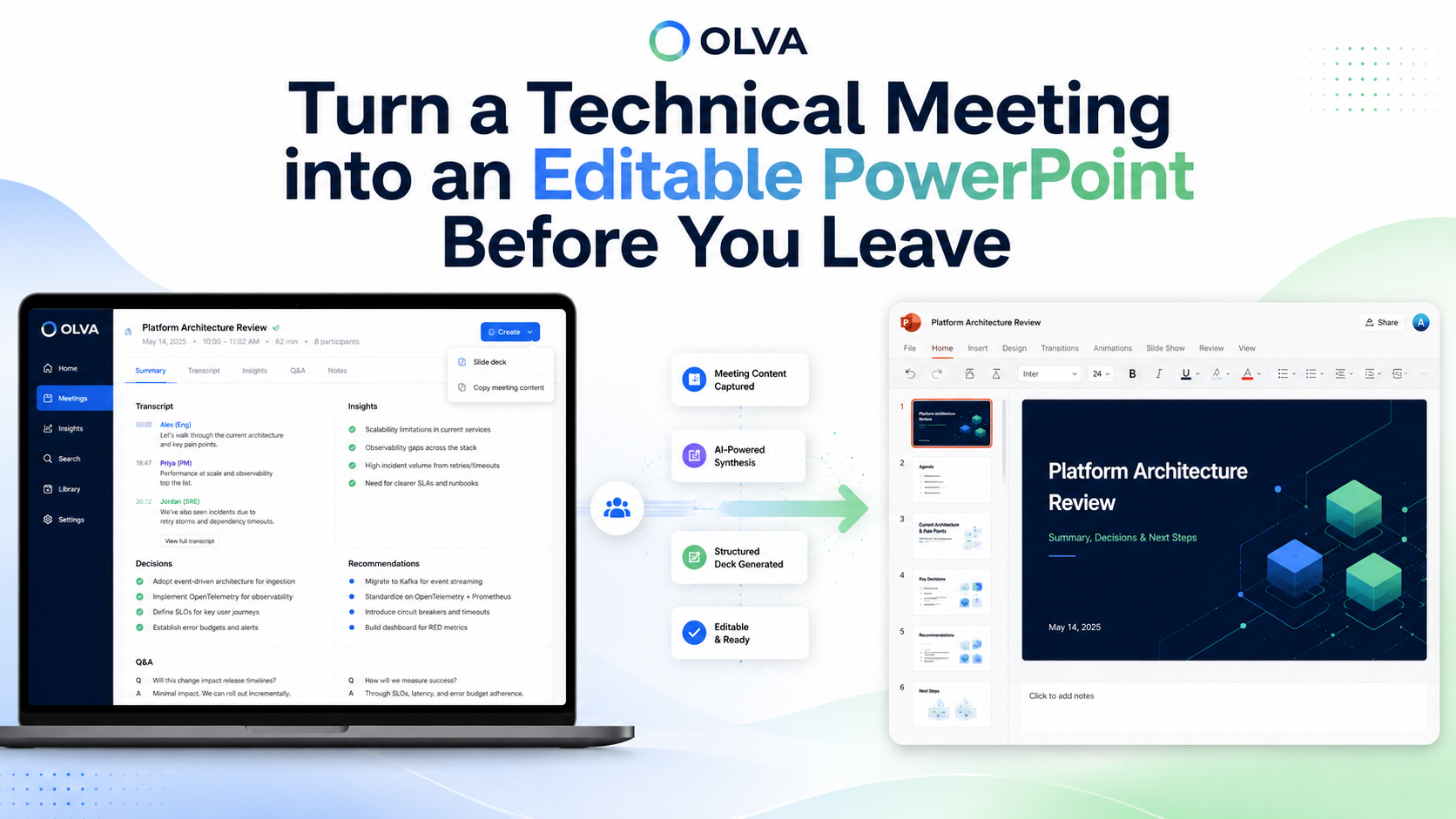
Turn a Technical Meeting into an Editable PowerPoint Before You Leave
POV: Your boss asks you to present a technical meeting — Turn the conversation into an editable PowerPoint before you leave the room
As a product manager, technical lead, or engineering manager you know how quickly momentum fades after a meeting. Decisions get scattered across Slack threads, action items are forgotten, and the polished presentation you promised never materializes. What if you could capture the conversation, extract the decisions, and generate an editable PowerPoint while you’re still fresh from the discussion?
This post shows a practical, repeatable process for turning a completed technical meeting into an editable slide deck in minutes. It explains what to capture during the call, how to prepare concise deck instructions, and how to use OLVA’s meeting-to-deck features to reduce manual work so you can focus on follow-ups and execution.
If you want to try this approach, learn more about OLVA at https://olva.ai.
Why immediate slide decks change the outcome of technical meetings
When technical conversations are converted into clear, shareable presentations quickly, several things improve:
- Decisions remain crisp. Capturing decisions while context is fresh reduces ambiguity about what was agreed.
- Faster stakeholder alignment. A structured deck is an easy way to brief executives, clients, or other teams without rehashing the call.
- Shorter feedback loops. When action items and owners are visible immediately, follow-up velocity increases.
- Less rework. You avoid consolidating scattered notes, code snippets, and slide fragments later.
For product and project teams working across disciplines, that time-savings translates into fewer missed commitments and clearer roadmaps.
What to capture during a technical meeting (and how OLVA helps)
A useful deck is built from a few core meeting outputs. If you make these available, you can convert them into a usable presentation almost automatically.
- Transcript excerpts. Useful for quoting exact technical constraints or customer statements. OLVA transcribes conversations live so you can mark the most relevant snippets.
- Decisions and rationale. Who chose what and why? OLVA can surface candidate decisions during and after the meeting; flag the ones that should become slides.
- Action items with owners and dates. OLVA identifies action items automatically and lets you edit ownership before generating outputs.
- Architecture diagrams and references. Upload diagrams, specs, or design docs to OLVA so they can be referenced while building slides.
- Questions and answers. OLVA detects questions during the call and can include detected Q&A as a slide or appendix.
- Risks, assumptions, and open issues. These often form critical slides for leadership and cross-functional alignment.
Capturing these elements during the meeting — rather than retroactively — preserves context and saves hours of post-meeting work.
OLVA Presentation Creation Process
OLVA helps users turn a completed meeting into an editable slide deck without manually copying notes, transcripts, or action items into PowerPoint.
The user opens a completed meeting in OLVA and chooses Create → Slide deck or Create presentation.
OLVA gathers available meeting context, such as the transcript, meeting insights, decisions, recommendations, and any meeting Q&A the user created while reviewing the meeting.
The user can choose which sources to include and add custom slide deck instructions, such as the audience, tone, level of detail, or specific themes to emphasize.
Once submitted, OLVA starts generating the presentation in the background. The user does not need to keep the modal open while the deck is being created.
While generation is running, OLVA shows progress from the meeting’s presentation history, so the user can see that a deck is being created.
When the presentation is ready, OLVA saves it as a private, editable PowerPoint file tied to that meeting.
The user can download the .pptx file directly. If they have Google Drive connected, they can also choose to save the same PowerPoint file to Drive.
Each generated deck is kept as its own version, so users can create multiple presentations from the same meeting without overwriting previous ones.
If Drive saving fails, the presentation is still available for download. The generated deck remains safe and accessible in OLVA.
A practical step-by-step workflow: leave the room with a draft deck in progress
Below is a realistic workflow that you can follow for 30–90 minute technical meetings.
- During the meeting — rely on live support
- Turn on live transcription and keep OLVA running in the background.
- When a decision is made, speak the owner and target date aloud (for example: “Alex owns the data migration task, target end of Q2”). OLVA will capture and surface action items.
- If someone asks a tough question, use OLVA’s live Q&A to pull context-aware answers or references from uploaded specs.
- Flag important transcript lines or create sticky notes for any slide-worthy quotes or diagrams.
- Immediately after the meeting — review and select sources (5–10 minutes)
- Open the completed meeting in OLVA and skim the auto-generated summary, decisions, and action items.
- Remove or edit any action items that need clarification; ensure owners and dates are accurate.
- Choose which documents or transcript segments should be included in the slide deck.
- Create the deck — give concise deck instructions (2–3 minutes)
- Click Create → Slide deck and select the meeting sources you want included.
- Add brief instructions: audience (engineering leadership, cross-functional stakeholders, client), tone (concise, executive summary, or technical deep-dive), and any slides to emphasize (decisions, migration plan, risks).
- Submit and continue your day — OLVA generates the deck in the background.
- Download and polish (5–20 minutes depending on depth)
- When the deck is ready OLVA saves it as an editable .pptx file linked to the meeting.
- Download and perform a quick pass: confirm numbers, edit language for your audience, and add visuals or diagrams where needed.
- Share and iterate
- Distribute the slide deck to stakeholders, link it to follow-up tickets, and attach the meeting record for context.
- Create a version history by generating alternate decks from the same meeting if you need different levels of detail.
This workflow is designed to take advantage of OLVA’s real-time capture and background generation so the heavy lifting happens while you continue executing.
Sample slide structure for a technical/architecture meeting
Use this as a template when you tell OLVA what kind of deck to create.
- Title slide: Project name, meeting date, presenter
- Objectives: Why this meeting happened (3 bullets)
- Executive summary: 1-slide recap of decisions and next steps
- Current state: brief architecture diagram and key constraints
- Proposed changes: bullets and small diagrams for each option
- Decision log: what was chosen, why, and trade-offs
- Action items: owner, due date, status
- Risks & mitigations: what could block the plan
- Timeline & milestones: next 3–6 months
- Appendix: relevant transcript quotes, attached docs, and Q&A
OLVA can pull the content for each of these sections from the transcript, action items, and attached documents if you include those sources when you create the deck.
Tips for giving OLVA good instructions so the first draft is useful
When you create a slide deck from a meeting, the single most effective thing you can do is provide a short, focused set of instructions. Examples:
- “Audience: Engineering Leadership. Tone: concise. Include decisions and owner-level action items on separate slides.”
- “Audience: Client steering committee. Tone: executive summary. Emphasize risks, timeline, and required approvals.”
- “Audience: Cross-functional team. Tone: technical. Include architecture diagram and detected Q&A in the appendix.”
Keep each instruction to one or two lines — the clearer you are about audience and emphasis, the closer the generated deck will be to usable.
Example scenario: cross-functional architecture review
Situation: A 60-minute architecture review for a migration plan with engineers, product, and a security lead.
During the meeting: OLVA transcribes the conversation and detects a question about compliance requirements; it surfaces relevant paragraphs from the architecture spec you uploaded. When the team agrees on the migration cutover strategy, OLVA identifies a decision and an action item: “DB team to complete schema migration by 2026-06-15; owner: Priya.” You flag a sticky note to include the cutoff plan as a slide.
After the meeting: You open the meeting in OLVA, edit the action item owner and date for clarity, choose the transcript, decisions, and the uploaded architecture PDF as sources, and click Create → Slide deck. You add this instruction: “Audience: CTO and product leaders. Tone: concise. Highlight decisions, timeline, and security considerations.”
OLVA generates the deck while you draft the project plan. When the .pptx is ready you download it, swap in a high-resolution architecture diagram, and send the deck to the CTO and DB team. The result: the alignment is clear, the DB team starts the migration tasks immediately, and the CTO gets a decision-ready summary without waiting 24–48 hours.
Quality-check and governance — what you still need to do
Auto-generated decks are a time-saver, not a substitute for human review. Before you share externally or use the deck for key decisions:
- Verify technical claims and numbers. Use the transcript or source documents to confirm any quantitative statements.
- Confirm ownership and dates for action items.
- Ensure you comply with recording and disclosure policies. OLVA is botless and private to the user, but you’re responsible for meeting consent and local laws.
- Edit language and visuals to match your organization’s standards and audience expectations.
Treat the generated deck as a draft that accelerates the review and distribution process.
Common pitfalls and how to avoid them
- Pitfall: Relying on the first draft without review. Fix: Schedule a 10–15 minute review pass immediately after the deck is generated.
- Pitfall: Missing attachments or diagrams. Fix: Upload critical specs and diagrams before or during the meeting so OLVA can reference them.
- Pitfall: Vague deck instructions. Fix: State audience, tone, and 1–2 priorities (e.g., “focus on decisions and timeline”).
- Pitfall: Privacy or consent gaps. Fix: Notify participants per your organizational policies and local law before capturing or transcribing conversations.
OLVA reduces the manual burden, but clear processes and short review cycles are still required.
Why this approach works for product and technical teams
Product managers and technical leads are translation roles: turning detailed technical trade-offs into actionable business decisions. Generating an editable PowerPoint from a completed meeting preserves context, accelerates alignment, and makes decisions easier to communicate across the organization.
Using OLVA’s live capture, question detection, document-aware intelligence, and slide generation lets teams compress hours of post-meeting work into minutes, while preserving the human judgment that matters.
If you want to explore how this looks in practice, see https://olva.ai for product details and examples.
Conclusion
When your boss asks you to present after a technical meeting, you don’t have to scramble. Capture the right elements during the conversation, give concise instructions, and use a background generation workflow to create an editable PowerPoint while you move on to the next task. The result: faster alignment, clearer accountability, and fewer late-night slide marathons.
OLVA’s meeting-to-deck capabilities make this repeatable without forcing you to copy-paste notes or reconstruct conversations from memory. Use the process outlined above to leave the room confident that the presentation — and the decisions it represents — will be ready to share.
For more on features and supported workflows, visit https://olva.ai.