Running Multilingual Meetings Smoothly with OLVA’s Lingo Mode
Introduction
Global teams, cross-border clients, and international recruiting mean more meetings with mixed-language participants. For product managers, customer success teams, sales leaders, technical teams, HR/recruiters, and executives, language friction can slow decisions, create misunderstandings, and exhaust meeting hosts trying to both listen and translate.
This article shows how to run multilingual meetings smoothly using OLVA’s Lingo Mode to transcribe and translate mixed-language conversations in real time. We focus on a practical use case: a US-based product manager running a product demo with a Spanish-speaking customer. In this scenario OLVA translates both sides in real time, displays live transcripts, and plays each translated response aloud so everyone can follow the conversation naturally.
Why real-time, two-way translation matters
Common meeting pain points when participants speak different languages:
- Lag: Manually translating sentences or pausing to repeat slows the flow and wastes time.
- Cognitive load: Hosts juggle product explanations, technical details, and translation, increasing mistakes.
- Missed nuance: Idioms, tone, and follow-up questions can be lost in imperfect translation.
- Documentation gaps: Post-meeting notes may miss commitments or technical detail expressed in the other language.
Two-way, in-meeting translation addresses these by keeping the conversation continuous, lowering cognitive load, and preserving a searchable transcript in the host’s language for follow-up and decision-making.
How OLVA’s Lingo Mode works in practice
OLVA is a bot-free, real-time AI meeting assistant that captures device audio and provides live transcription, speaker diarization, and live translation without joining the meeting as a visible bot. Lingo Mode pairs these capabilities to translate both sides of a conversation into each participant’s preferred language, and optionally play the translated responses aloud.
Key elements you’ll use in a bilingual meeting:
- Live transcription: OLVA transcribes spoken content as it happens so you can follow along in text.
- Speaker diarization: Each speaker is identified so the transcript shows who said what.
- Live two-way translation: OLVA translates both speakers into the other party’s language in real time.
- Audio playback of translated lines: Translated text can be read aloud so participants hear fluent responses.
- Context-aware assistance: OLVA detects questions, provides contextual answers, and explains technical terms based on the live transcript and any uploaded documents.
Preparation: setting up a bilingual demo (English ↔ Spanish)
Example scenario: You’re a product manager based in Austin demoing a new feature for a Spanish-speaking procurement team in Mexico City. You want the demo to flow naturally, avoid long translation delays, and capture decisions.
- Confirm consent and policies
Before using any live transcription or translation, inform participants and follow your organization’s recording/transcription policies and local laws. OLVA’s design keeps assistance private to the user (it does not join as a visible bot), but you still must obtain appropriate consent.
- Choose devices and audio setup
Use a laptop or smartphone running OLVA on macOS, Windows, iOS, or Android. Ensure the meeting audio is available on the device. For virtual meetings (Zoom, Google Meet, Teams), join normally on one device and run OLVA alongside the call so it can capture audio directly from your device. For in-person conversations, place the mobile device near the group or use a headset.
- Set the default languages and Lingo Mode
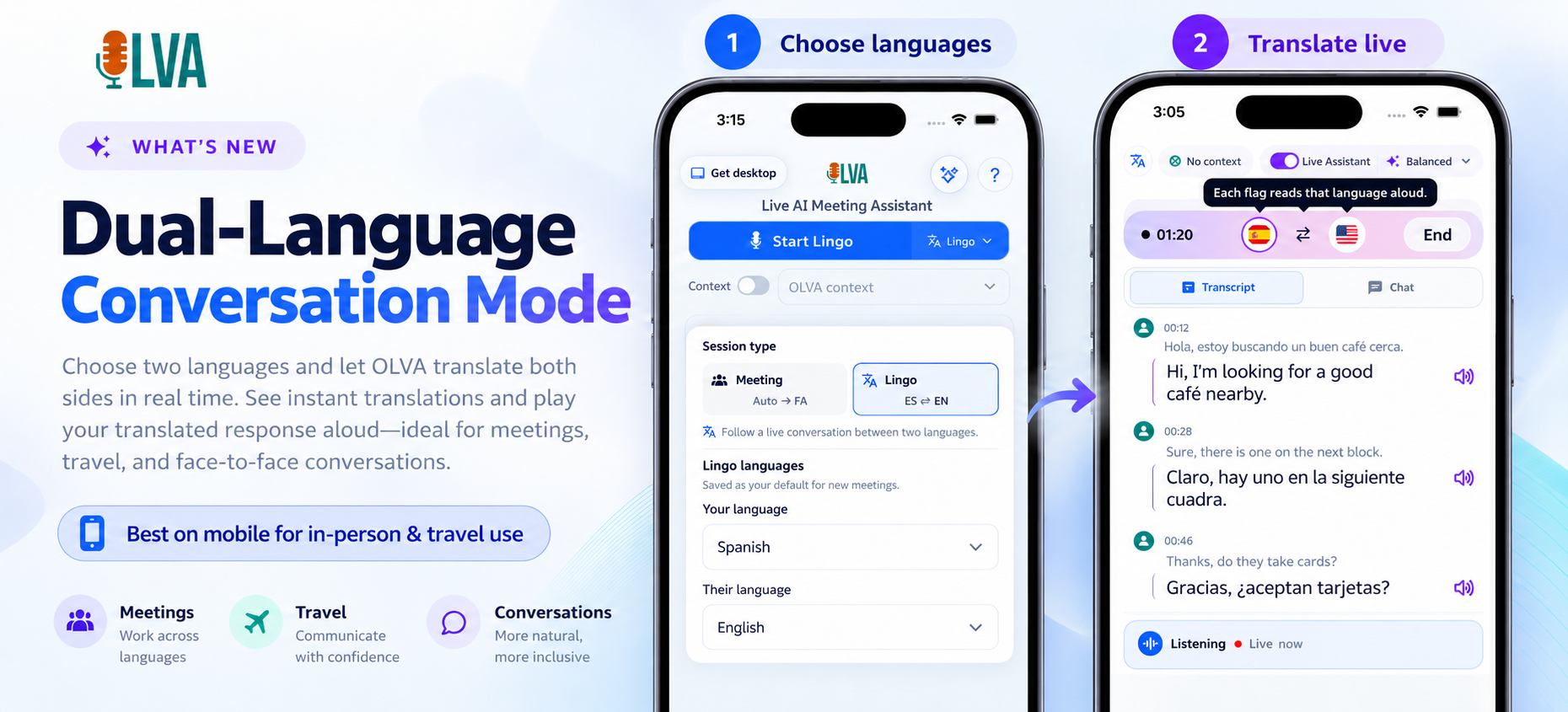
In OLVA’s language settings select English (your default) and Spanish (the customer’s language). Enable Lingo Mode to translate both speakers in real time and to play translated responses aloud. Decide if you want automatic translation of the whole meeting (recommended for full accessibility) or manual translation of selected segments when you need extra clarity.
During the meeting: a step-by-step walkthrough
- Start OLVA and confirm live transcript
Once OLVA is running, you’ll see a live transcript with speaker labels. If a Spanish participant begins, OLVA transcribes in Spanish and displays that line. In parallel OLVA translates the line into English and shows the translation for you, while optionally playing it aloud.
- Two-way spoken translation keeps the flow
When you speak in English, OLVA transcribes your sentence and provides a Spanish translation the customer can read or hear. When a customer replies in Spanish, OLVA displays their Spanish transcript and provides the English translation back to you.
Example exchange (simplified):
- Customer (Spanish): “¿Cuál es el tiempo de implementación para integrarlo con nuestro ERP?”
- OLVA transcript: [Customer — Spanish] “¿Cuál es el tiempo de implementación para integrarlo con nuestro ERP?”
- OLVA translation (English): “What is the implementation time to integrate it with our ERP?” (played aloud to the PM if enabled)
- PM responds in English: “About three weeks, including testing and data migration.”
- OLVA transcript + Spanish translation: “Aproximadamente tres semanas, incluyendo pruebas y migración de datos.” (played aloud to the customer)
- Use question detection and instant answers
As OLVA detects questions, it highlights them. If the customer asks a detail like “What data format do you need for migration?” OLVA can surface a contextual answer using the meeting transcript or documents you attached before the call. The assistant produces the answer in English and Spanish so you can confirm with the customer quickly.
- Explain technical terms without pausing the demo
If the customer asks about a technical term you used (for example, “ETL pipeline”), OLVA can provide a brief, context-aware definition and translate it into Spanish. That saves you from stopping the demo to craft a simple explanation and reduces misunderstanding.
- Play translated responses aloud when appropriate
Audio playback of translations is useful when participants prefer hearing the translation rather than reading. For a live demo, play translated responses aloud for the non-native speaker to maintain a conversational rhythm and avoid awkward silences.
Managing challenges and minimizing friction
- Audio quality and accents
Bad audio, overlapping speech, strong regional accents, and background noise reduce transcription accuracy. Use a good microphone, encourage single-speaker turns, and if necessary, repeat short, key sentences for clarity. OLVA’s speaker diarization helps keep speakers separated even in lively discussions.
- Sensitive content and compliance
OLVA is designed to operate privately for the user, but you remain responsible for consent, workplace policy, and legal obligations. Always disclose transcription/translation and obtain permission where required.
- Handling idioms, slang, and nuance
Machine translation is getting better, but idioms and cultural nuance sometimes need human clarification. If a translated line seems off, ask a short clarifying question or use OLVA’s manual translate on that segment to generate alternate phrasing.
- When to switch to manual translation
For critical legal, contractual, or financial statements, consider pausing for a human translator or repeating the key text manually after OLVA’s translation appears. OLVA’s transcripts and summaries still provide a valuable reference for whatever level of verification you need afterward.
Post-meeting: capture, follow-up, and reuse
- Searchable meeting history and summaries
After the meeting, OLVA organizes transcripts, detected questions, action items, and decisions into a searchable record. For the demo example, you’ll have a clear record of the customer’s requirements, implementation timeline, and any technical constraints—both in English and Spanish if you selected summary language options.
- Action items and slide decks
OLVA detects action items during the meeting (for example, “Provide ERP mapping template”) and lists owners and next steps. You can convert the meeting into an editable slide deck or a Google Doc to share with internal stakeholders—saving time and preventing miscommunication.
- Post-Meeting Chat and follow-ups
Use OLVA’s Post-Meeting Chat to re-check anything that felt unclear and to draft follow-up emails in the customer’s language. OLVA can generate a bilingual meeting recap suitable for sending to the customer, with suggested next steps and attachments.
Practical examples and scripts
Example 1 — Sales demo with instant translated audio
Context: A sales leader presents planned pricing tiers to a Spanish-speaking procurement team.
- Before the call: upload the pricing PDF to OLVA so the assistant can reference it.
- During the call: OLVA transcribes both sides and translates pricing bullet points aloud when you present them, helping the customer hear numbers and terms clearly in Spanish.
- After the call: OLVA extracts action items (e.g., “Share custom quote”) and provides a bilingual follow-up email draft.
Example 2 — Technical onboarding with document-aware answers
Context: A technical onboarding session where the customer asks about API rate limits.
- During the call: OLVA detects the question, finds the rate-limit section in the uploaded API spec, and provides a contextual answer in English and Spanish.
- Benefit: You avoid digging through docs mid-call and the customer gets an immediate, translated response.
Best practices checklist
- Announce OLVA and obtain consent when required.
- Use a reliable microphone and quiet space if possible.
- Pre-upload key documents (specs, pricing, integration guides) for document-aware answers.
- Set the meeting default languages in OLVA and enable two-way audio playback if you want spoken translations.
- Encourage single-speaker turns and short sentences for better transcription accuracy.
- Use OLVA’s question detection and action item extraction to capture commitments in real time.
- After the meeting, review OLVA’s summary and share bilingual follow-ups or editable slide decks as needed.
Why this approach works for the target audience
- Product managers: Maintain demo momentum while ensuring technical clarity and capturing requirements.
- Customer success teams: Reduce misunderstanding in onboarding, accelerate time-to-value, and preserve customer preferences in a searchable history.
- Sales leaders: Keep demos professional and frictionless, and speed up proposal follow-ups with bilingual recaps.
- Technical teams: Access document-aware answers and preserve technical decisions in both languages.
- HR/recruiters & executives: Conduct interviews or stakeholder conversations with reduced friction and better record-keeping.
Where to learn more and get started
OLVA supports 87 languages and regional variants and is available on macOS, Windows, iOS, and Android. Learn more about setting up Lingo Mode and other real-time meeting features at https://olva.ai.
Conclusion
Running multilingual meetings doesn’t have to mean slow, stop-start conversations or reliance on external interpreters for every call. Using OLVA’s Lingo Mode—with live transcription, two-way translation, speaker diarization, and audio playback—you can keep demonstrations and discussions flowing naturally while reducing cognitive load and capturing accurate, bilingual records.
For cross-border demos, technical onboarding, and customer conversations, Lingo Mode reduces friction, improves clarity, and turns a multilingual meeting into a productive conversation rather than a logistical hurdle. Pair good meeting hygiene (consent, clear audio, short turns) with OLVA’s real-time capabilities, and you’ll run smoother multilingual meetings that lead to faster decisions and clearer follow-ups.
End of article