No more late-night slides: Generate and edit presentation-ready decks from client meetings
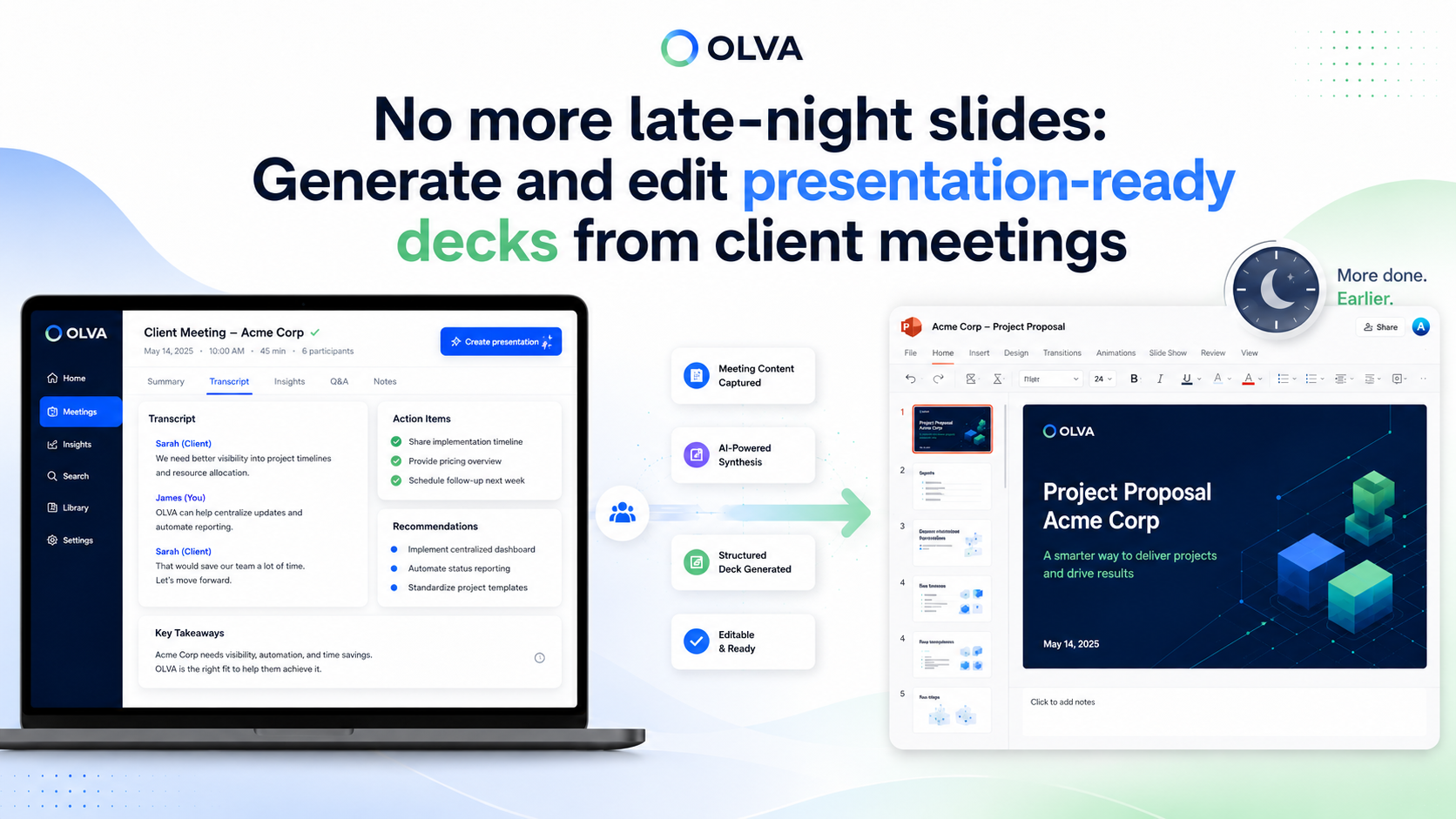
If you spend evenings turning messy meeting notes into polished presentations, you’re not alone. Sales teams, account executives, customer success managers, and client-facing consultants regularly trade hours of follow-up work for a single crisp slide deck that summarizes decisions, next steps, and opportunities. What if you could skip the manual copy-and-paste, get a structured, editable PowerPoint created from the meeting context, and spend that saved time on strategy and customer conversations instead?
This post explains a practical, repeatable workflow for turning completed meetings into presentation-ready decks. It shows how to use meeting context, clear instructions, and OLVA’s slide deck generation to produce editable .pptx files that you can review, edit, and share in minutes—not hours.
For details and to get started, see https://olva.ai.
Why a better meeting-to-deck workflow matters
Sales and customer-facing roles live or die on timing, clarity, and follow-through. A fast, accurate deck helps you:
- Reinforce agreements and deliverables the same day the meeting happened.
- Keep messaging consistent across internal stakeholders and the client.
- Convert signal into action (proposals, next steps, escalation) before momentum is lost.
- Reduce friction from missing context, partial transcripts, or scattered notes.
Manually assembling a deck often introduces errors (missed commitments, inconsistent figures), takes time, and pushes review cycles later—making your follow-up less effective. Using the meeting transcript, decisions, and action items as a structured source short-circuits that work.
The main problems teams face when building decks from meetings
- Fragmented inputs: notes in multiple tools, people taking different types of notes, and slides copied from email threads.
- Lost context: not capturing who said what, why a decision was made, or the subtle distinctions that matter for next steps.
- Rework and polishing: time spent formatting, recreating tables, and aligning to brand templates.
- Versioning: creating multiple decks from the same meeting and accidentally overwriting or duplicating work.
The solution is to centralize meeting information, generate a first draft that's already structured for presentations, and then apply human review and brand polish.
What OLVA brings to the table (without overselling)
OLVA is a botless, real-time meeting assistant that captures live transcripts, detects questions, surfaces insights, and organizes meeting outcomes. One of OLVA’s post-meeting features is Slide Decks: a way to turn a completed meeting into an editable PowerPoint presentation generated from the transcript, decisions, action items, and any meeting Q&A you created while reviewing the meeting.
Important points about how OLVA’s slide generation fits into your workflow:
- Decks are created from completed meetings—generation happens after the meeting is finished and the meeting materials are ready.
- The output is an editable
.pptxfile you can download and edit in PowerPoint or compatible tools. - You can include connected documents and specify custom instructions (audience, tone, level of detail) to influence the deck.
- Generated decks are saved privately to your OLVA account and can optionally be saved to Google Drive.
Use OLVA to produce a well-structured starting point that reduces manual work. Always review and tailor the generated deck to your audience before sharing.
OLVA Presentation Creation Process
OLVA helps users turn a completed meeting into an editable slide deck without manually copying notes, transcripts, or action items into PowerPoint.
The user opens a completed meeting in OLVA and chooses Create → Slide deck or Create presentation.
OLVA gathers available meeting context, such as the transcript, meeting insights, decisions, recommendations, and any meeting Q&A the user created while reviewing the meeting.
The user can choose which sources to include and add custom slide deck instructions, such as the audience, tone, level of detail, or specific themes to emphasize.
Once submitted, OLVA starts generating the presentation in the background. The user does not need to keep the modal open while the deck is being created.
While generation is running, OLVA shows progress from the meeting’s presentation history, so the user can see that a deck is being created.
When the presentation is ready, OLVA saves it as a private, editable PowerPoint file tied to that meeting.
The user can download the .pptx file directly. If they have Google Drive connected, they can also choose to save the same PowerPoint file to Drive.
Each generated deck is kept as its own version, so users can create multiple presentations from the same meeting without overwriting previous ones.
If Drive saving fails, the presentation is still available for download. The generated deck remains safe and accessible in OLVA.
How to request a deck that actually reduces follow-up work (practical steps)
- Capture the meeting cleanly. Use OLVA’s live transcription and question detection during the call to identify decisions, commitments, risks, and objections. Highlight or edit any important points while reviewing the transcript after the meeting so the source material is clean.
- Choose your sources. When you open the meeting in OLVA, select the transcript, identified action items, decisions, and any Q&A or uploaded documents you want included. More sources give the generator better context; prefer curated, relevant documents over everything in your drive.
- Provide clear deck instructions. Think of instructions as a short creative brief. Include audience, purpose, tone, slide count range, and any sections to emphasize. Examples below.
- Start generation and continue other work. OLVA builds the deck in the background—generation doesn’t require you to keep a tab open.
- Review and humanize. Download the
.pptx, verify facts and quotes, adapt visuals to brand guidelines, and add diagrams or customer data that need manual insertion. - Share with intent. Use the deck to structure your follow-up email, internal alignment meeting, or next client conversation.
Example deck instructions and slide outlines (copy-paste ready)
Example 1 — Sales follow-up (AE to client)
Deck instruction to OLVA:
- Audience: Client stakeholders (VP of Engineering, Procurement)
- Purpose: Recap agreed scope, timeline, and pricing options after today’s scoping call. Objective is to move to a statement-of-work draft.
- Tone: Clear, concise, professional
- Level of detail: High-level timeline and milestones; include exact action items and owner names.
- Max slides: 10
Suggested slide outline that OLVA might generate (and you should verify):
- Title slide: Meeting name, date, participants
- Executive summary: One-sentence outcome and suggested next step
- Agreed scope: Bulleted scope items captured from the transcript
- Timeline & milestones: Proposed dates and responsibilities
- Pricing & options: Summary of discussed pricing bands
- Key decisions captured in the meeting
- Open questions and risks
- Action items: owner, due date, status
- Attachments & references (links to documents)
- Next steps & contact
Example 2 — Customer success renewal conversation
Deck instruction to OLVA:
- Audience: Internal renewal committee
- Purpose: Brief the committee on customer health, requested features, and renewal posture
- Tone: Concise and analytical
- Level of detail: Include sentiment signals and opportunities for expansion
- Max slides: 8
Suggested slide outline:
- Title and meeting context
- Customer sentiment highlights and quotes
- Product requests & priority
- Risks and mitigations
- Renewal timeline and expected outcomes
- Action items and owners
- Suggested renewal offer structure
- Decision recommendation
Use these examples as templates you tweak for your team and customers.
How to edit and polish the generated deck quickly
Even the best generator produces a draft you should own. Here’s a fast checklist for turning a generated deck into a client-ready presentation:
- Verify names, dates, numbers, and any quoted commitments.
- Replace or standardize branding: corporate slide template, fonts, and logo.
- Strengthen the narrative: ensure the opening frames the outcome and the closing has a clear next step.
- Convert transcript snippets into concise bullets—or use short pull-quotes for emphasis.
- Add visuals: charts (exported from your analytics tool), a simple timeline, or a one-slide plan of record.
- Confirm owners and deadlines for action items; add calendar invites where appropriate.
- Run a single pass for typos and slide order flow.
A focused 20–30 minute review often turns an OLVA-generated deck into a high-quality client deliverable.
Best practices to get higher-quality decks
- Curate your sources: include key documents (RFP excerpts, proposal PDFs) and omit unrelated files.
- Use concise instructions: a 2–4 sentence creative brief is enough to set direction.
- Prefer explicit calls to action: e.g., “Request SOW sign-off by next week” rather than “follow up”.
- Keep slide counts realistic: ask for 8–12 slides for short recaps, 15–25 for mid-length proposals.
- Save multiple versions: OLVA keeps each generated deck as its own version so you can iterate without losing prior drafts.
Privacy, consent, and review responsibilities
OLVA is designed to work privately alongside your meeting by capturing device audio. But "botless" does not mean consentless. You’re responsible for complying with recording and transcription laws, workplace policies, client agreements, and any applicable confidentiality rules. Treat OLVA-generated content as a draft that requires human review—especially for pricing, legal terms, or statements of commitment.
Practical scenarios and quick wins
- Late-afternoon discovery call: Generate a 10-slide client recap before leaving the office and use it as the follow-up email attachment the next morning.
- Renewal risk: Create a short internal briefing that captures customer sentiment and recommended interventions so leadership can decide quickly.
- Cross-functional handoff: Turn a technical scoping meeting into a developer-facing overview with decisions and open integration questions.
These scenarios reduce the time between insight and action—often the difference between a closed deal and a stalled opportunity.
Where to go from here
If you want to try this workflow with your existing meeting habit, start by using OLVA during a few client calls to capture transcripts and decisions. After the meeting, open the completed meeting in OLVA, choose Create → Slide deck, pick the sources you want, provide a short brief, and let the system generate a downloadable .pptx that you can edit and share.
OLVA’s Slide Decks help you turn meeting conversations into structured, decision-ready presentations using the context your team already captured. Learn more at https://olva.ai.
Conclusion
Stop treating slide creation as a nightly chore. By centralizing meeting context, giving a clear brief, and using a meeting-aware generation workflow, you can get editable, client-ready decks in minutes. That means faster follow-up, clearer communication, and more time for revenue-generating work.
Remember: the generated deck is a starting point—not a substitute for human judgment. Verify details, apply brand polish, and tailor the narrative to the audience. When you combine a meeting-aware assistant with a disciplined review process, you get professional presentations without the late nights.
Start by testing one meeting-to-deck cycle this week and measure the time you save on slide assembly. If you want to learn more, visit https://olva.ai and explore how Slide Decks fit into your team's meeting workflow.