
When You Can't Install Software: Use Olva Mobile as a Private, Invisible AI Assistant
When You Can't Install Software: Use Olva Mobile as a Private, Invisible AI Assistant on Shared or Locked-Down Work Computers
Many executives, legal teams, remote workers and employees who use managed devices face the same problem: company policies or locked-down kiosks prevent installing new apps or meeting integrations. Yet the need for real-time meeting support — coaching, fact checking, quick answers, and follow-up suggestions — doesn't go away.
Olva Mobile was built for that exact situation: an invisible, private AI meeting assistant you can run from your phone while you use a shared or locked-down computer. This guide explains how to use Olva Mobile safely and effectively, walks through practical examples for executives and legal teams, compares relevant alternatives fairly, and shows why real-time assistance matters more than ever.
Visit Olva at https://olva.ai for details and downloads.
Why real-time meeting help matters — not just post-meeting notes
Most meeting tools focus on recording, transcribing, and summarizing after the fact. Those features are valuable, but they don't help you respond to a sudden objection, clarify a complex clause, or seize an unspoken buying signal while the conversation is happening.
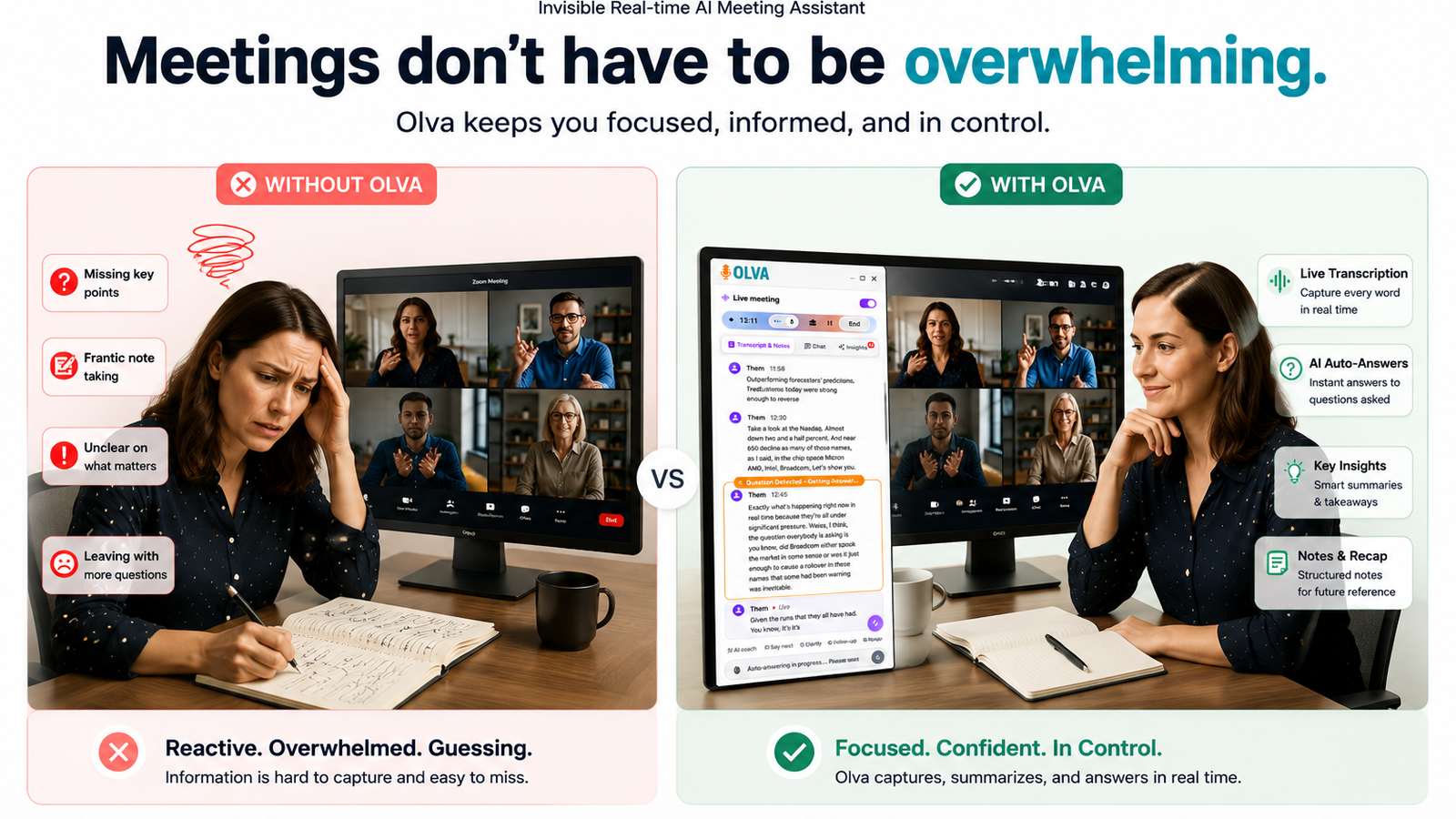
Olva is designed to help during the meeting: detecting questions and objections as they occur, surfacing instant answers drawn from meeting context and uploaded documents, and coaching you privately so your next response is sharper. When you can't modify the machine you're in front of, running Olva from your mobile device keeps that capability available without changing the host environment.
Typical situations where Olva Mobile helps
- Executive presenting from a loaner laptop or shared boardroom kiosk where IT blocks installs
- In-house counsel attending a sensitive negotiation on a corporate workstation that disallows third-party apps
- Remote workers connecting from hotel business centers with locked-down PCs
- Recruiters or salespeople sharing a public or managed device at an event
In each case, you want help in the moment — not just a transcript afterwards.
Competitors: what they do well, and where Olva Mobile differs
Fair comparison first:
- Tools like Otter.ai, Fireflies, and Rev.ai provide strong transcription and searchable meeting records. They excel at post-meeting summaries and automated note-taking.
- Many conferencing platforms (Zoom, Microsoft Teams, Google Meet) have integrations and bots that join the meeting, record, or summarize. These are great when IT allows them and when participants are comfortable with a visible assistant.
Limitations in locked-down or privacy-sensitive situations:
- Installing apps or enabling third-party integrations may be blocked by IT.
- Visible meeting bots create notifications, participant entries, and potential compliance concerns in legal or regulated contexts.
- Post-meeting summaries can't influence the immediate flow of a conversation.
Where Olva Mobile is different:
- Invisible AI Assistant: Olva Mobile runs on your phone and gives private, real-time support without a visible bot joining the meeting.
- Works with locked-down devices: Because it runs on your mobile device, you don't need to install anything on the host computer.
- Live assistance: Automatic question detection, instant answers, live Q&A, and AI coaching happen during the meeting — not just after.
Competitors are strong for transcriptions and meeting archives. Olva adds live, private intelligence when you can't or don't want to change the host environment.
How Olva Mobile works in locked-down environments (practical setups)
Below are common setups and step-by-step workflows you can use that respect IT restrictions and privacy policies.
- Dual-device setup (most common)
- Use the managed computer for the official meeting client (Zoom, Teams, Meet).
- Run Olva Mobile on your phone. Let it listen to the meeting audio through the phone's microphone or by joining the call as an audio-only participant if allowed.
- Wear an earbud or bone-conduction headset so Olva's coaching and instant answers are private.
Benefits: No software installation on the host. Olva gives live prompts and suggested responses through your earbud while the conversation continues.
- Phone as the primary assistant (when you cannot join from the host)
- If the host restricts joining, you can put Olva Mobile on speaker or near the laptop speaker so it hears the meeting.
- Use an earbud or a second phone to receive Olva's private coaching audio or notifications.
Benefits: Quick to set up in impromptu situations or shared kiosks.
- Invisible Screen Share Mode (when you must present)
- If you need to share your screen but can't install the Olva desktop client, use Olva Mobile's Invisible Screen Share Mode (available in the app) that keeps Olva hidden from meeting participants while you present.
Benefits: You can present from the host device while Olva remains private and continues providing live insights and question detection.
- Document-aware intelligence without installing anything on the host
- Upload PDFs, contracts, or product docs to your Olva Mobile account before the meeting.
- Olva uses those documents to answer questions in real time, even if the host computer is locked down.
Benefits: Reference agreements or technical specs during negotiations without relying on the host machine's permissions.
Privacy and compliance — what executives and legal teams need to know
Olva Mobile was designed with privacy in mind for sensitive environments:
- Invisible by design: Olva does not appear as a visible bot participant in the meeting unless you explicitly invite it to join.
- Local control: Meeting transcripts and AI interactions are visible only to the user by default and can be deleted at any time.
- No forced recording: Olva focuses on real-time assistance and does not position itself as a recording platform.
Practical note: Many organizations and regulated meetings have explicit policies about recording and external assistance. Always confirm internal policies and disclose as required. Olva makes this easier by minimizing visibility and providing user-level control over transcripts and storage.
Real-world examples and scripting
Example 1 — Executive negotiating contract terms
Situation: You’re in a contract negotiation, the IT team uses a locked-down laptop, and your legal counsel isn’t present.
How to use Olva Mobile:
- Start Olva Mobile before the meeting and upload the draft contract.
- Wear a discreet earbud. Let Olva detect objections or ambiguous clauses in real time.
- When a counterparty asks a question about liability or indemnity, Olva surfaces suggested language pulled from your uploaded document and proposes a short, executive-friendly response you can read aloud.
Result: You respond quickly with accurate, compliant language. Olva also flags follow-up negotiation points to add to post-meeting action items.
Example 2 — Legal team in a sensitive discovery conversation
Situation: A discovery call occurs on a secure workstation that forbids third-party installs.
How to use Olva Mobile:
- Use the dual-device setup with Olva Mobile listening and providing live clarifications of legal terms.
- Olva’s fact checking highlights statements that may conflict with previously uploaded evidence or briefings.
- The assistant can privately recommend precise clarifying questions to limit risk and preserve privilege.
Result: The attorney asks targeted questions, avoids inadvertently waiving privilege, and collects a clean record for follow-up.
Example 3 — Remote worker on a hotel business center PC
Situation: The hotel PC blocks browser extensions and app installs, but you must join a product demo and answer technical questions.
How to use Olva Mobile:
- Upload product specs to Olva before the meeting.
- Use Olva Mobile to detect technical questions and generate instant answers with references to the uploaded specs.
- If the customer asks for pricing comparisons, Olva detects buying signals and suggests an upsell phrasing.
Result: You handle technical questions confidently, increasing the chance of a successful outcome despite limited device access.
Live capabilities that make the difference in-the-moment
- Live Transcription: Olva transcribes the conversation in real time to reduce cognitive load and preserve important language.
- Automatic Question Detection: Olva flags customer objections, clarifications, and executive challenges as they occur.
- Instant Answers: The assistant generates answers using meeting context and uploaded documents — enabling informed responses without leaving the conversation.
- Live Q&A: Ask Olva privately: “What should I say next?” or “Summarize the last 3 minutes.”
- Live Insights & Opportunity Detection: Olva surfaces buying signals, risk indicators, and suggested follow-ups.
- AI Coaching: Get brief coaching prompts for tone, phrasing, or legal sensitivity.
- Fact Checking: Verify claims on the fly against available documents.
- Post-Meeting Memory: When the meeting ends, Olva creates a private recap, action items, and searchable notes for future reference.
Practical tips for success
- Prepare documents in advance: Upload contracts, decks, and policy docs to Olva before sensitive meetings.
- Use discreet audio: Bone-conduction headsets or small earbuds keep coaching private without blocking ambient sound.
- Practice once: Try a short test call to confirm volume and that Olva is hearing the meeting properly.
- Respect policies: Confirm recording and assistance policies for legal or regulated conversations.
- Keep privacy tight: Delete transcripts or limit storage when required.
Closing: How Olva Mobile changes what’s possible on shared and locked-down computers
When you can’t install software on a shared or locked-down workstation, you shouldn’t have to give up live meeting intelligence. Olva Mobile brings private, invisible AI assistance to your phone so you can handle objections, answer questions, and get coaching in real time without altering the host device. For executives, legal teams, remote workers, and anyone using managed devices, that real-time edge can change outcomes.
Olva focuses on helping you perform better during meetings — not just remember them afterwards. To explore how Olva Mobile works in your environment, visit https://olva.ai and review the mobile setup and privacy options available for managed-device scenarios.
Start with a test meeting, upload a sample document, and experience firsthand how live question detection, instant answers, and private AI coaching can keep you confident and compliant even when you can’t touch the host computer.