Google Docs Integration in Olva 1.7.0: Automate Post‑Meeting Follow‑Up with OLVA
Automate Post‑Meeting Follow‑Up with Olva 1.7.0: Google Docs Integration for Clean Recaps and Faster Action
Meetings are where decisions are made—but too often the momentum stalls afterward. For product managers, project leads, consultants, and remote teams, the real work begins when a conversation ends: assigning owners, clarifying next steps, sharing artifacts, and making sure commitments turn into results.
Olva 1.7.0 introduces native Google Docs integration that automates the repetitive, error-prone parts of post‑meeting follow‑up. But Olva is more than a recap engine. Designed as an invisible AI meeting assistant, it helps you perform better in meetings and then pushes that intelligence directly into collaborative docs so teams move faster.
This article explains how the Google Docs integration changes follow‑up workflows, shows concrete use cases for product and project teams, compares how Olva differs from traditional meeting tools, and gives practical templates and steps you can apply today.
Why automate follow‑up? The cost of fuzzy recaps
Common problems after meetings:
- Action items are unclear or lack owners and deadlines.
- Important questions raised during the call get lost in chat or forgotten.
- Meeting notes sit in a user’s local doc or an app that others don’t read.
- Teams spend time manually formatting minutes and copying links into a shared doc.
Automating follow‑up reduces friction and preserves the meeting’s momentum. For distributed teams and consultants managing many stakeholders, clean, consistent recaps mean fewer clarifying emails and faster delivery.
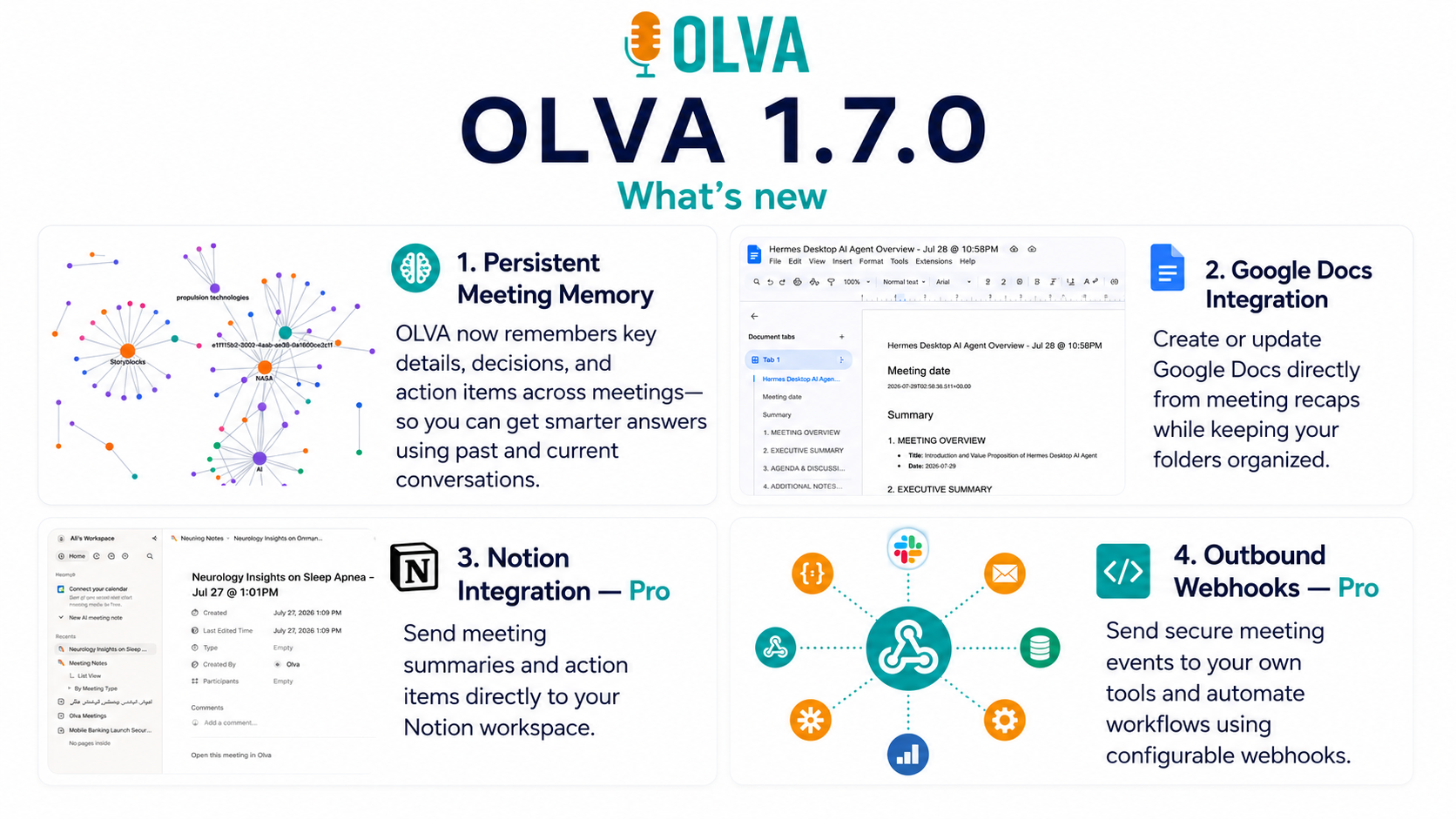
What Olva 1.7.0 brings: Google Docs integration, simplified
Key behaviors of the new integration:
- Automatic recap creation: Olva can create or update a Google Doc when a meeting ends (or in real time during the call) using a configurable template.
- Structured action items: Detected actions include owners, due dates, confidence scores, and links to source transcript timestamps so teammates can review context instantly.
- Question-to-answer capture: When Olva’s Automatic Question Detection finds a question during the meeting, it saves both the question and Olva’s Instant Answer (or recommended follow‑up) into the doc.
- Document-aware references: If you upload contracts, specs, or proposals to Olva before or during the meeting, Olva includes relevant excerpts and links in the Google Doc recap.
- Privacy-first sharing: Docs are created in the user’s Google Drive and shared according to the user’s settings—no invisible bots in the guest list, no extra meeting participants.
Olva keeps the meeting experience unobtrusive (Invisible AI Assistant) while capturing the discrete outputs that make follow‑up actionable.
How this helps product and project teams (real scenarios)
Scenario 1 — Sprint planning (Product Manager)
- During a sprint planning session, Olva transcribes the meeting live and detects user commitments and blockers via Live Insights and Automatic Question Detection.
- At meeting end, Olva creates "Sprint 42 — Planning Recap" in Google Docs with:
- A short summary of scope changes
- Action items with owners (e.g., "Alex — finalize API spec — due Wed")
- Blockers highlighted and linked to transcript timestamps
- Links to uploaded design PDFs and the product spec
- The PM can assign owners directly in the doc and tag them in comments. Stakeholders receive a single authoritative recap instead of disparate chat messages.
Why it works: The integration removes manual note cleanup and ensures deadlines and owners are explicit—so sprint items move into boards faster.
Scenario 2 — Client engagement (Consultant)
- On a client call about pricing and rollout, Olva flags pricing objections and surfaces suggested responses via AI Coaching. If the consultant accepts a suggested phrasing, Olva logs it.
- The Google Doc recap includes the objection, Olva’s suggested answer, and a recommended follow‑up question to ask the client in the next call.
- The consultant attaches the relevant slide deck and proposal PDF; Olva pulls exact quote lines into the doc so the client has context.
Why it works: The consultant leaves the meeting with a clean, client-ready document containing both the conversation and the consultant’s best answers—reducing back‑and‑forth and accelerating approvals.
Scenario 3 — Cross‑functional incident retro (Operations)
- During an incident review, Olva detects root-cause clues and timestamps factual claims.
- The Google Doc recap includes a timeline, decisions made, assigned remediation tasks, and suggested post‑mortem owners.
- Olva’s Fact Checking flags any claim that contradicts previous logs (from Post‑Meeting Memory) so the team can validate before closing actions.
Why it works: Teams leave the retro with a single, validated source of truth and explicit next steps.
How to set up best practices with Olva + Google Docs
- Configure your recap template in Olva settings
- Include sections: Summary, Decisions, Action items (Owner, Due date, Confidence), Questions & Answers, Linked documents.
- Choose creation behavior
- Auto-create at meeting end, or let Olva update a running doc in real time.
- Link relevant documents before the meeting
- Upload product specs, contracts, or proposals so Olva’s Document‑Aware Intelligence can surface accurate excerpts and answers.
- Use Olva’s suggested owners and due dates
- Accept or tweak suggestions during the call; Olva records the final assignment in the doc.
- Share with your team via Google Docs permissions
- Docs live in your Drive; set viewer/commenter/editor rights as usual to avoid accidental access.
These steps standardize recaps across meetings and reduce the cognitive load on meeting hosts.
Practical templates you can use (copy into your Olva doc template)
- Sprint Planning Recap
- Title: Sprint XX — Planning Recap
- Summary (2–3 bullets)
- Scope changes
- Decisions
- Action items:
- [Owner] — [Task] — [Due date] — [Confidence]
- Open questions
- Attachments and links
- Client Meeting Recap
- Title: Client — Topic — Date
- Meeting summary
- Key questions & answers (with Olva’s suggested follow‑up)
- Action items (owner + due date)
- Relevant contract excerpts
- Incident Retro Recap
- Title: Incident — YYYY-MM-DD
- Timeline of events (with source timestamps)
- Root cause analysis
- Action items with owners and SLAs
- Postmortem owner and follow‑up date
Templates help Olva map detected elements to document sections consistently.
How Olva compares to other meeting tools (fair and factual)
Many tools today focus on recording, transcription, and post‑meeting summaries (for example, Otter.ai, Fireflies, and some features of Zoom). They do an excellent job making spoken words searchable and shareable.
Conversational intelligence platforms like Gong and Chorus add analytics for sales calls and can surface patterns across interactions.
Where Olva is different and why it matters:
- Real‑time assistance vs after‑the‑fact summaries: Olva is designed to help users during meetings—Instant Answers, Live Q&A, AI Coaching—so you can influence the conversation in the moment.
- Automatic Question Detection: Olva doesn’t just transcribe questions; it flags them, suggests responses, and ensures those Q&As are preserved in the recap.
- Live Insights & Opportunity Detection: Olva continuously analyzes the conversation for buying signals, risks, and clarifications and surfaces suggested follow‑ups while the meeting is live.
- Document‑Aware Intelligence: Uploaded PDFs and contracts are used to generate contextually accurate answers and to populate recaps with precise excerpts.
- Invisible AI Assistant: Olva does not join meetings as a visible bot, avoiding extra participants or awkward notifications while retaining privacy and seamless assistance.
Competitors are strong at transcription and analytics; Olva’s differentiation is combining real‑time, private coaching and live intelligence with automated, structured follow‑up that lands directly in Google Docs.
Privacy and governance
Olva is private by design: no bot participants are added to calls, transcripts are visible only to the user (or as configured), and transcripts can be deleted at any time. Google Docs created by Olva live in your Drive and inherit the usual Drive permissions, enabling straightforward governance for teams and enterprises.
For regulated environments, administrators can control where documents are stored and who can access them.
Measuring impact: KPIs that improve with automated follow‑up
Track these metrics to demonstrate value:
- Time to first action after meeting (expected to decrease)
- Percentage of action items with owners and due dates (expected to increase)
- Follow‑up email volume (expected to decrease)
- Cycle time for approvals or project milestones (expected to decrease)
- Meeting re‑clarification rate (expected to decrease)
Teams that adopt structured, automated recaps consistently report faster decision velocity and fewer missed commitments.
Quick checklist to run a follow‑up‑first meeting
- Before meeting: upload any supporting documents to Olva and enable Google Docs integration.
- During meeting: use Live Q&A to verify facts, request suggested phrasing via AI Coaching for difficult questions, and accept Olva’s suggested actions when you agree.
- After meeting: review the auto‑created Google Doc, confirm owners, and adjust permissions before sharing.
This approach makes follow‑up a natural output of the meeting, not a separate administrative task.
Conclusion: Move from notes to outcomes
Olva 1.7.0’s Google Docs integration closes the loop between meeting intelligence and team action. For product managers, project leads, consultants, and remote operations teams, this means fewer ambiguous recaps, clearer ownership, and faster outcomes—without asking people to change how they meet.
More than just automating notes, Olva helps teams perform better during meetings through live insights, automatic question detection, instant answers, and private AI coaching. When the meeting ends, the work can begin immediately: clean recaps, structured action items, and the contextual evidence teams need to move forward.
To see how it fits into your workflow and to get started with templates and setup, visit https://olva.ai and try the Google Docs integration for your next meeting.